
AI Agent 101: How to Build a Custom App/Server Inside ChatGPT
Sometimes the app you want to use is not available directly inside ChatGPT. Or maybe the built-in connector is too general, and you want the agent to follow your own workflow, rules, and safety boundaries. That is when you may need to create a custom app/server.

A basic AI agent can use apps that already exist inside ChatGPT or Claude, such as Gmail, Calendar, Notion, Google Drive, or Slack. That is useful for simple repetitive tasks like summarising emails, creating reminders, drafting replies, organising notes, or searching files.
But sometimes the app you want to use is not available directly inside ChatGPT. Or maybe the built-in connector is too general, and you want the agent to follow your own workflow, rules, and safety boundaries.
That is when you may need to create a custom app/server.
For example, I wanted ChatGPT to interact with my content management workflow in a very specific way: create structured drafts, route content into the right content type, and never publish automatically.
So instead of asking AI to simply “write content,” I built a small bridge:
ChatGPT → custom app/server → hosted backend → CMS API → draft content
That is when the agent starts feeling less like a chatbot and more like a tiny specialised operator.
1. Key terms before jumping in
Before we get into the setup, here are the key terms that made everything less scary for you.
AI agent
An AI agent is an AI system that can use tools, follow instructions, access connected apps, and complete tasks.
A simple way to think about it:
AI Agent = model + role + tools + skills + memory + feedback
A chatbot answers.
An agent does.
Please revisit the AI Agent 101: Let’s Build Your First Practical AI Agent here.
Tool
A tool is an action the AI can call.
For example: create draft post, search documents, summarise email thread, or create calendar reminder.
The model does not magically know how to do these things. The tool gives it a controlled way to perform an action.
Connector / App
A connector lets the AI access another app.
For example: Gmail connector, Notion connector, Google Drive connector, Slack connector, or GitHub connector.
These are the easiest starting point because the platform already provides the connection.
MCP
MCP stands for Model Context Protocol.
In beginner language, MCP is like a bridge that lets AI models talk to external tools and apps in a structured way.
Think of it as:
AI model → MCP bridge → external app or database
Server
A server is the backend that receives requests and performs actions.
For this setup, the server is the part that says:
When ChatGPT asks to create a draft, I know how to talk to the CMS API and create that draft safely.
API
An API is how one software system talks to another.
For example, your server can use a CMS API to create a draft article.
Environment variables
Environment variables are where you store private values like API tokens, project IDs, dataset names, or secret keys.
You do not hard-code these into your public code.
Token
A token is like a software password.
It tells the external app: this request is allowed.
Never expose your real token in screenshots, blog posts, frontend code, or GitHub.
2. Why create a custom server/app?
You do not need a custom server for everything.
For basic workflows, built-in connectors or tools like n8n, Zapier, or Lindy may be enough.
But you may need your own server when:
- The app you want is not available as a built-in ChatGPT connector
- The built-in connector is too generic
- You need custom actions with specific rules
- You want the agent to write to your own database or CMS
- You want draft-only behaviour
- You want to control fields, formats, categories, and permissions
- You want batch actions
- You want to prevent publishing, deleting, or overwriting
For example, instead of giving the AI broad access to a CMS, you can define one safe tool:
create draft post
And tell it:
Create drafts only. Never publish. Never overwrite existing posts. Return the draft ID.
That is safer than giving the AI vague access and hoping it behaves.
The custom server becomes the agent’s controlled “hands.”
3. How much coding do you need?
You do not need to be a full-time engineer, but you need to understand the basic structure.
You should know enough to understand:
- what a file is
- what a folder or repo is
- what installing dependencies means
- what environment variables are
- what a terminal command does
- what a server endpoint is
- what an API token is
- what deployment means
You do not need to write everything from scratch manually.
Tools that help:
- VS Code
- Codex / Claude Code / Cursor etc.
- GitHub
- Render / Railway / Vercel/ etc.
How I think about it:
VS Code is where the project lives.
Codex, Cursor, or Claude Code act like coding assistants.
GitHub saves the code.
Render / Railway / Vercel host the server.
ChatGPT App / MCP lets ChatGPT call the server.
CMS / API is where the final action happens.
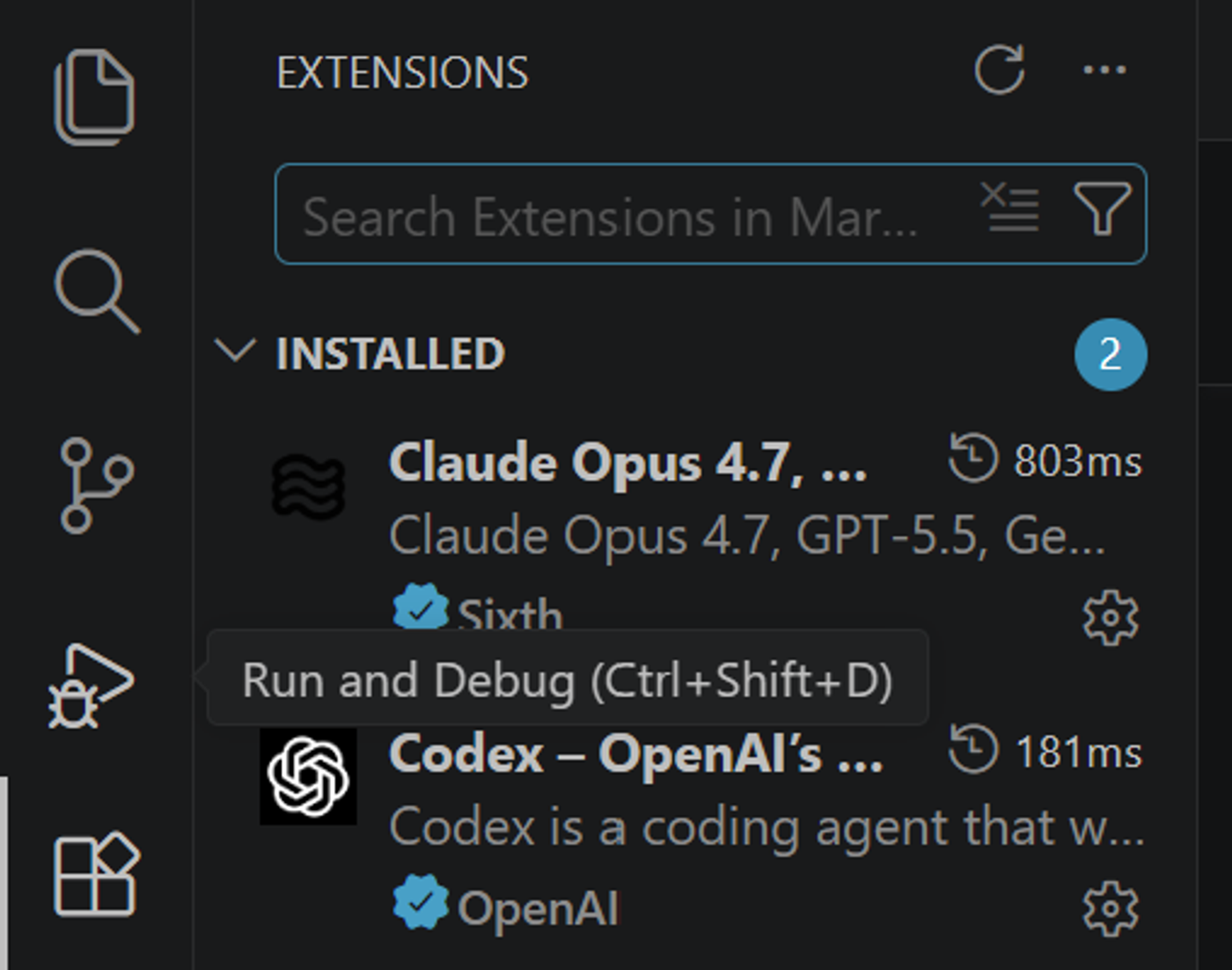
IMPORTANT: The most important skill is not memorising code. It is knowing how to explain the workflow clearly to the coding assistant.
A weak prompt would be:
Build me an AI agent.
A better prompt would be:
Create a TypeScript MCP server with one tool called create draft post. The tool should accept title, slug, excerpt, category, tags, and body in Markdown. It should create a draft only, never publish, never overwrite existing content, and store private credentials in environment variables.
That is the difference. And to be honest, even a tier-1 coder can suck at vibe coding. :)
4. The architecture
A custom ChatGPT app/server looks like this:
ChatGPT → Custom MCP app/tool → Your server → External app API → Action completed
For my use case, the structure was:
ChatGPT → My custom agent → Hosted server on Render → CMS API → Draft article created
The server is important because ChatGPT needs a stable public URL to call.
When the server only runs on your laptop, it is local.
When it is deployed on Render, it becomes available online.
5. Step-by-step: how to build it
Step 1: Define the agent’s job
Before coding, write the agent brief.
Example:
Name: Sam
Role: CMS draft assistant
Mission: Help create structured draft content in my CMS.
Rules:
- Create drafts only
- Never publish
- Never delete
- Never overwrite existing content
- Ask for confirmation for risky actions
- Return the created document ID and slug
This is the foundation. If the role is unclear, the code will also become messy.
Step 2: Define the tools
Start with one tool only.
Example:
create draft post
Input fields:
- title
- slug
- excerpt
- category
- tags
- body in Markdown
- SEO title
- SEO description
Output:
- draft ID
- slug
- success message
Do not build ten tools at the beginning. Start with one working tool.
Step 3: Create the local project
In VS Code, create a project folder.
Typical files include:
- package file
- TypeScript configuration file
- server file
- environment variable file
- gitignore file
The environment variable file stores secrets locally.
The gitignore file prevents secrets and unnecessary files from being uploaded to GitHub.
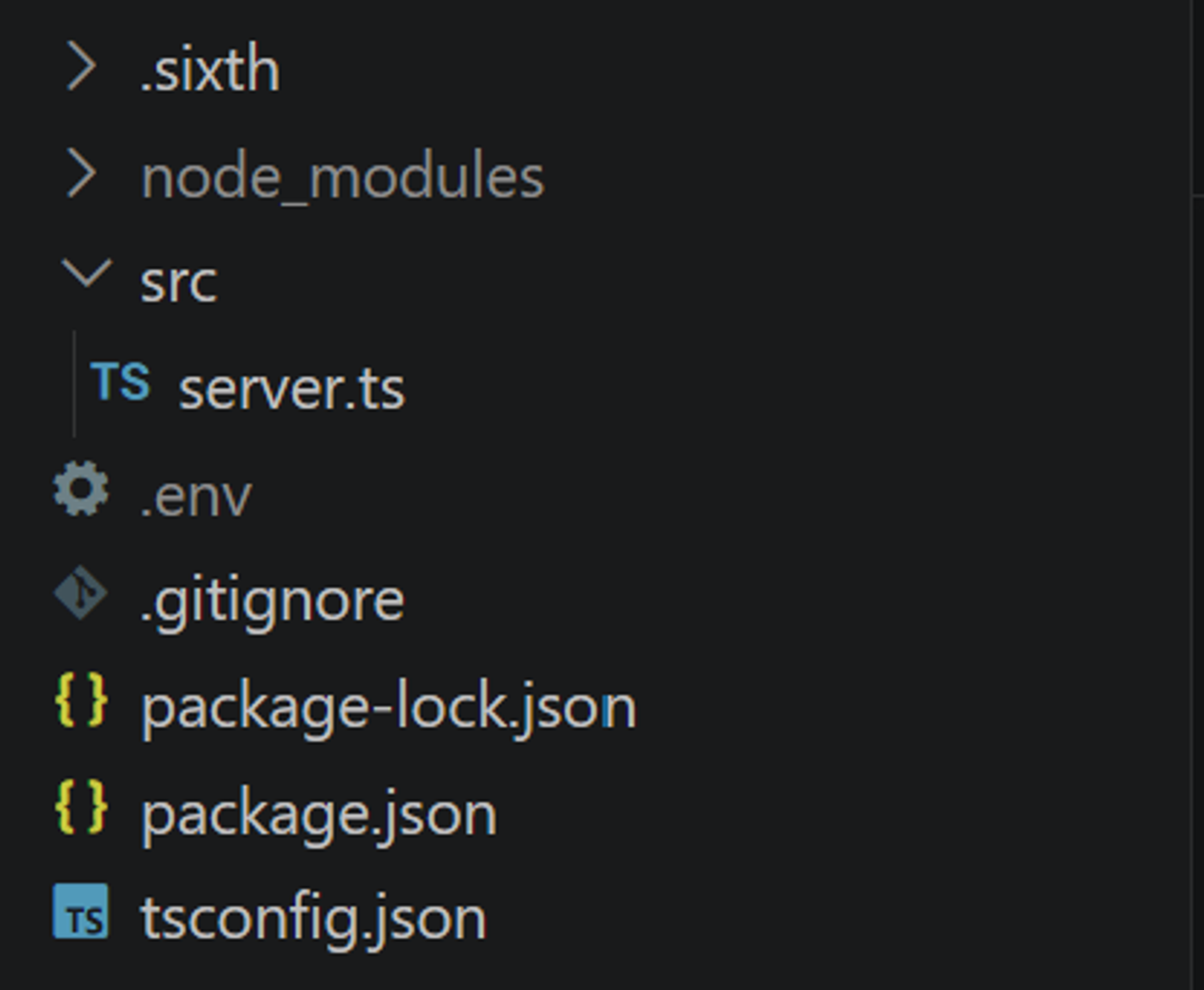
Important: Never commit your environment variable file. Never expose tokens. Never paste real tokens into blog posts.
Step 4: Build the MCP server
This is where a coding assistant helps.
You can ask Codex, or Claude Code to create:
- a small TypeScript server
- an MCP endpoint
- one tool
- input validation
- CMS API client
- draft creation logic
The key is to make the tool narrow and safe.
Step 5: Test locally
At this stage, the agent is only running locally on your laptop. In simple words: it works only when VS Code is open and the required terminal windows are still running. If you close VS Code, stop the server, or close the tunnel, ChatGPT can no longer reach the agent.
You are checking:
- Does the server start?
- Does the tool exist?
- Does the CMS accept the request?
- Does the draft appear?
- Does it stay draft-only?
Expect errors. This is normal.
Common errors include:
- missing environment variable
- wrong token
- wrong project ID
- wrong endpoint
- missing start script
- schema field mismatch
Step 6: Push to GitHub
Once it works locally, push the code to GitHub.
Make sure your environment variable file is ignored.
Your code can be public or private, but secrets should never be inside the repo.
Step 7: Deploy on Render or whatever cloud-based PaaS you decided
Render hosts the server.
You connect Render to GitHub, choose the repo, and set:
- build command
npm install
- start command
npm start
- environment variables
Render gives you a public URL.
Your MCP endpoint will usually be the public URL plus /mcp at the end.
That /mcp part matters.
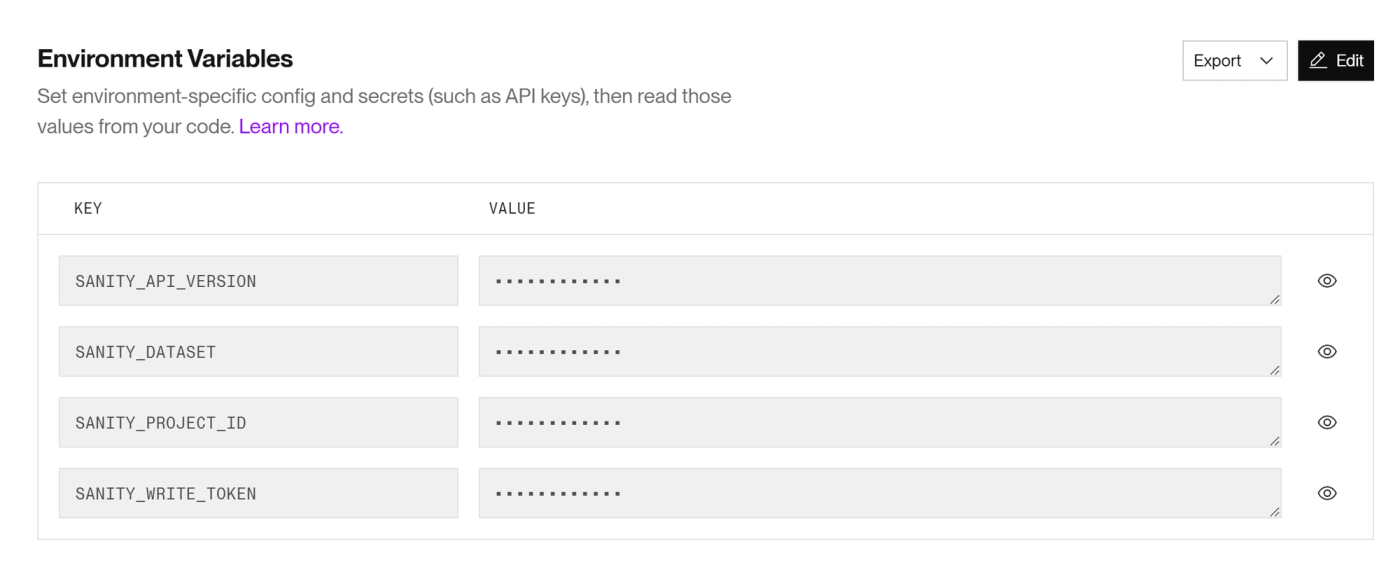
Step 8: Add environment variables on Render
Add the same secrets from your local environment file into Render’s environment variables.
Use placeholder names like:
- CMS project ID
- CMS dataset
- CMS write token
- CMS API version
- Port
Do not show real values.
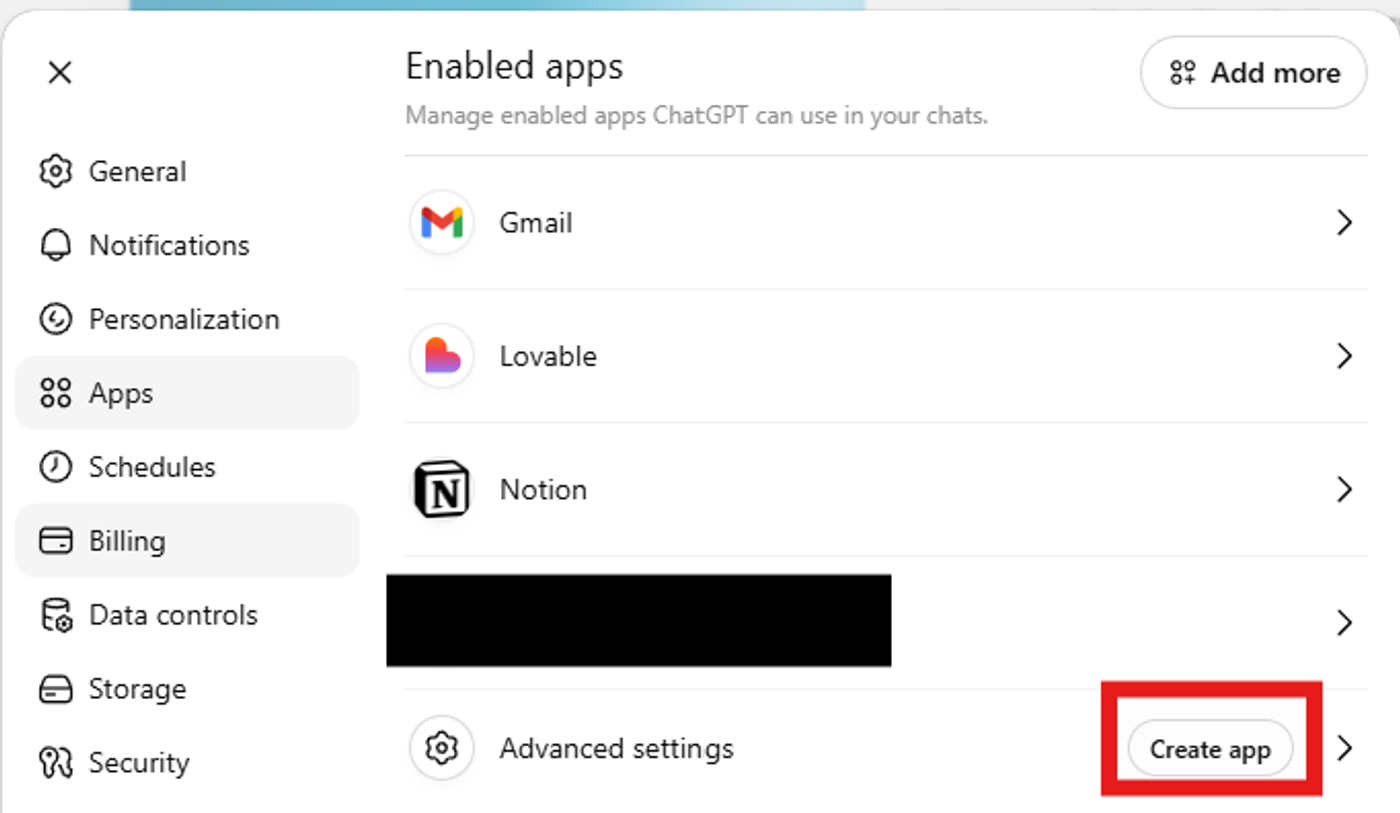
Step 9: Connect the server to ChatGPT
In ChatGPT, create or connect a custom app using the server URL.
The app should discover the tool, such as create draft post.
If the tool does not appear:
- check Render logs
- refresh the app
- reconnect
- confirm the /mcp endpoint
- confirm the server is live
Step 10: Test with a tiny draft
Do not test with a giant article first.
Test with something very small:
Title: Test Draft
Slug: test-draft
Body: This is a test.
If that works, then expand.
Step 11: Add more tools gradually
Once the first tool works, add more.
Examples:
- create daily news item
- create news ticker item
- create batch daily news items
The batch tool is useful because instead of approving 18 actions separately, you approve one batch action that creates 18 separate items.
6. How to train and improve the agent
You are not really training the AI model itself.
You are training the agent’s behaviour through:
- skills
- memory
- examples
- feedback
- tool design
- rules
Please revisit the AI Agent 101: Let’s Build Your First Practical AI Agent here.
7. Final takeaway
A basic AI agent uses tools that already exist.
An advanced AI agent starts when you create your own controlled bridge between the AI and your workflow.
The framework is:
- Define the agent’s job
- Define safe tools
- Build a small server
- Store secrets safely
- Test locally
- Deploy the server
- Connect it to ChatGPT
- Start with one tiny action
- Improve skills and memory
- Add more tools gradually
The goal is not to build a giant robot that does everything.
The goal is to build a small, reliable operator that understands your workflow, follows your rules, and helps you do one useful thing better than before.
That is when an AI agent becomes real: not when it sounds smart, but when it can safely and repeatedly help you get something done.